
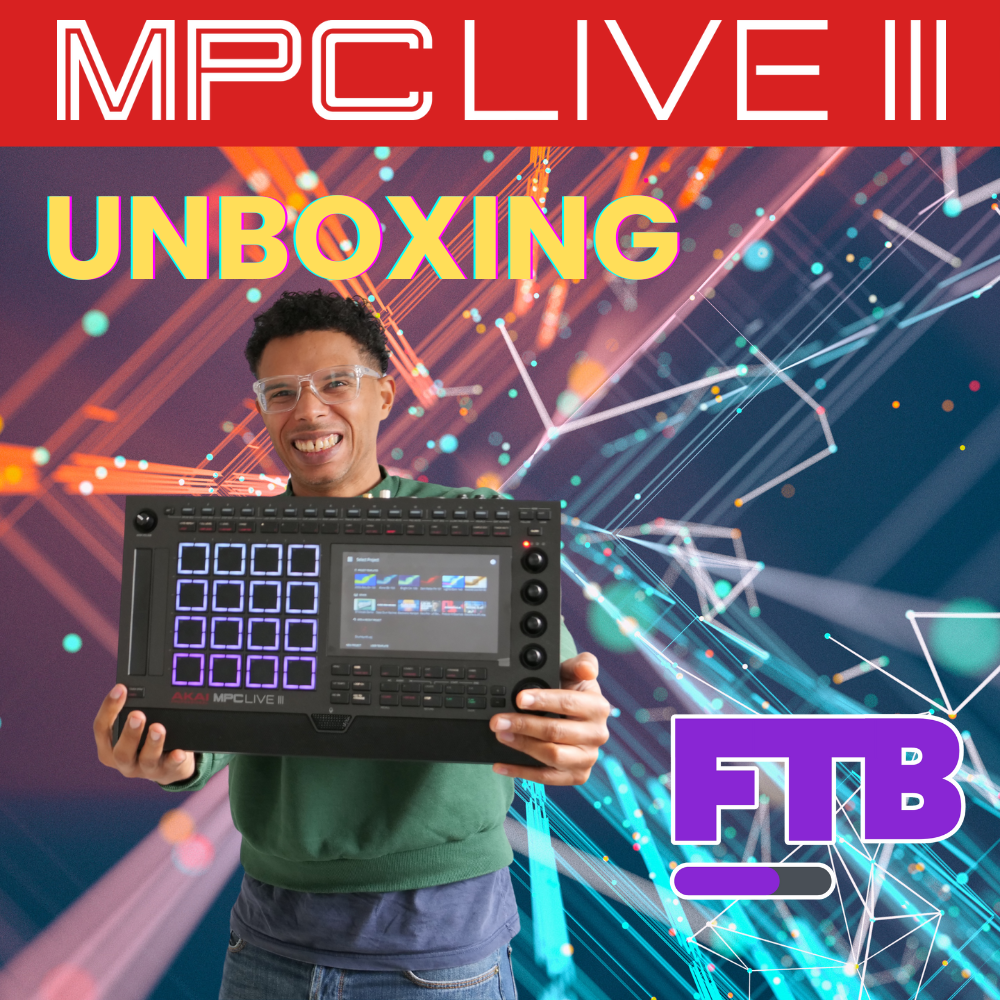
Why this machine is getting so much attention
The Live 3 ships straight away with MPC3 OS, no prior update needed, with a more modern interface and a hardware base designed for more ambitious projects. As soon as it boots, you see the home screen and… an audible fan, a new detail on this generation, a sign of a real hardware leap under the hood.
What actually changes
- MPC3 already installed on the unit I tested.
- Hardware evolution and project capacity: up to 32 plug-in tracks and 16 audio tracks in a single project, with 128 GB of internal storage (and 8 GB of RAM mentioned while I was exploring it). In the video, I push the machine to 32 plug-ins + 16 audio tracks (49 tracks in total with the default track) to put the workflow to the test.
- New “MPCE” pads (cube-shaped logo in the OS) and a QR code giving direct access to the documentation after the update.
Unboxing & first impressions
In the box, you’ll find the 19 V power supply, the connectors, and a first feeling: thinner than the Live II and slightly bigger, a very readable screen, nice buttons. Once it’s plugged in, you can hear the fan right from boot.
Starting a project and measuring the power
From the home screen, I create a New Project and load 32 plug-in tracks in one go, then 15 extra audio tracks (with the default track, that makes 49 tracks). The OS lists Fabric, Fabric XL, Fabric Piano, Fabric Electric Piano: enough to start composing right away without installing anything else.
This “extreme” test isn’t a recommendation, it’s a demonstration of capacity to understand the scale of this generation.
Plug-ins: what’s included, what needs a license
- Fabric / Fabric XL load natively on the Live 3, with no extra step.
- Some Play Series (e.g. Duet, Luxe) or third-party plug-ins shown in the list require you to log in to your inMusic account to validate the license; otherwise they won’t open.
Installing your plug-ins in the right place (and saving space)
Two key points to avoid filling up the internal storage:
- Choose the install location in Menu > Preferences > Activations, then Change to select either the internal storage or your SSD.
- Use an internal/USB SSD for your expansions and plug-ins. In the video, I take the SSD out of my Live 2 and put it in the Live 3, without reformatting, so I keep my libraries.
My take from using it: even if 128 GB is fine to start with, “Live 3” expansions are likely to be heavier than the older libraries. Planning for external storage is still more comfortable.
Update the OS before going further
If your machine isn’t up to date, do the update (MPC 3.x). On reboot, you see the MPC3 OS logo and you can reach the QR code to the docs in one move. It’s a simple point, but it’s essential to enjoy the new features.
What Part 1 shows (and what comes next)
In this first video of the Live 3 series, I lay the foundations: unboxing, getting started, track capacity, plug-in status and storage management. I’ve planned a dedicated playlist where the next parts will cover: controls, MPCE pads, the Step Sequencer, and the new features that matter for composing and arranging.
Key takeaways before you start composing
- Power/projects: 32 plug-ins + 16 audio tracks is a real step up.
- Plug-ins: Fabric/XL ready to use, others need activation through inMusic.
- Storage: think SSD for expansions and plug-ins, and set the location in Preferences > Activations.
- Update: make sure you’re on MPC3 OS to get the QR code and the latest features.
Leave a Reply