
Introduction
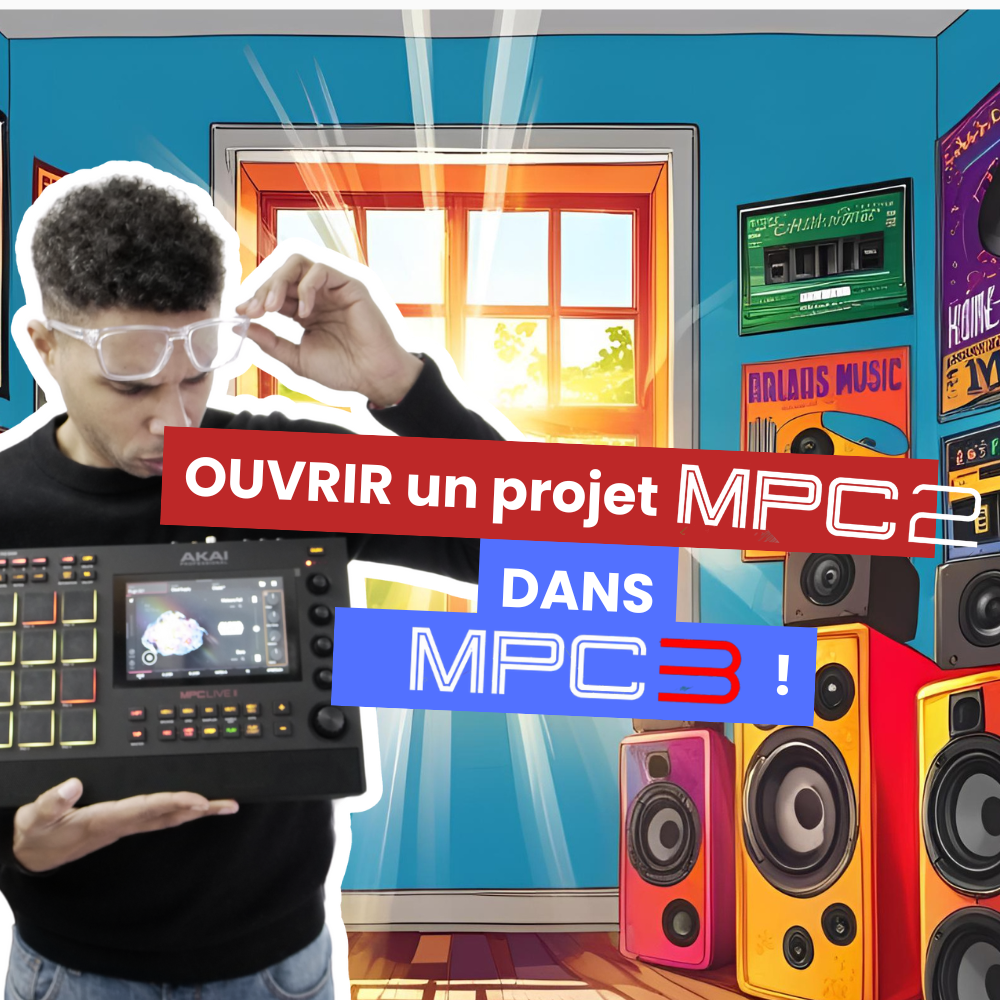
With the arrival of MPC3 OS, many producers and beatmakers are wondering how to migrate their old MPC2 OS projects to this new version. This transition involves major changes in the project architecture, in particular the unification of tracks and programs in a single container.
If you have projects created in MPC2 Software, here is a detailed guide to import them successfully into MPC3 OS while avoiding common mistakes.
Why should you plan the import ahead?
MPC2 OS projects don’t load exactly the same way in MPC3 OS. Some information, such as program names or the mute state of tracks, may not be kept.
Before importing an MPC2 project into MPC3, remember to:
Save a copy of your MPC2 project before making any changes.
Check the structure of your project in MPC2 Software so you can compare after the import.
Plan the adjustments needed to adapt your workflow to MPC3 OS.
The 5 key points for a successful import
1. Choosing the sequences to import
When you load an MPC2 project in MPC3, the interface offers two options:
- Import all the sequences of the project.
- Select only some sequences to import.
Tip: If you want a complete transition, go for importing all the sequences.
2. Unification of tracks and programs
One of the major changes in MPC3 OS is the unification of tracks and programs in a single container. This has several consequences:
- When you load a program, the track name automatically becomes the program name.
- However, when importing an MPC2 project, it’s the track name defined in MPC2 that is used, not the program name.
Key point:
- The program name defined in MPC2 is not kept in MPC3.
- So make sure you refer to the track names in MPC2 Software so you don’t lose your bearings.
3. Handling tracks assigned to the same program
If several tracks are assigned to the same program in MPC2 OS, MPC3 will create a specific structure:
- A main track will be generated for the shared program.
- The other tracks using this program will be converted into MIDI tracks, with a SendTo field pointing to the main track.
Example:
In MPC2, we have:
PadTrackName → Plugin: TubeSynth
Pad2TrackName → Same plugin: TubeSynth
In MPC3, this will give:
- A plugin track named PadTrackName, containing the TubeSynth plugin.
- A MIDI track named Pad2TrackName, sending the MIDI signal to the first track.
What to remember: Check the tracks linked to the same programs and make sure they are correctly assigned after the import.
4. The track mute state problem
If you used the TrackMute function in MPC2 OS to mute some tracks, be aware that this information is not transferred automatically to MPC3 OS.
Check to do after importing:
- Open your project in MPC2 Software and identify the muted tracks.
- Manually reapply these settings in MPC3 OS to avoid surprises during playback.
A concrete example:
In MPC2, Track5 and Track6 are muted in the Verse sequence. After importing into MPC3, these tracks are no longer muted. So you have to mute them again manually.
5. Converting the Song structure for the Arranger
MPC3 OS keeps the overall structure of songs when importing. However, to be able to edit it with the new MPC3 Arranger feature, you have to convert the song into a single sequence.
How do you do it?
- Go to Menu > Song
- Check that the sequence structure is respected.
- Click Convert Sec to generate a new sequence containing the whole song.
- Once converted, use the MPC3 Arranger to modify the structure.
Conclusion
Importing an MPC2 OS project into MPC3 OS takes a few adjustments, but by following these 5 essential steps, you can make the transition without losing important information.
Summary of the key points:
Check your sequences before importing.
Pay attention to the new handling of tracks and programs.
Adapt the MIDI tracks if several use the same program.
Re-mute tracks manually if needed.
Convert your song into a sequence to use the MPC3 Arranger.
My advice: Always use MPC2 Software to compare and adjust your projects after importing.
Have you run into other problems when importing your MPC2 projects into MPC3? Share your experience in the comments!
Need help optimizing your MPC3 workflow? Contact me!
Subscribe to my YouTube channel so you don’t miss the next tutorials!
Chase your dreams all the way!
Leave a Reply